FarEarth Workflow configuration
Background
FarEarth uses the concept of Workflows to direct the system on how to process data. Workflows define the individual processing steps and their parameters. This subsystem tracks the progress of processing orders and manages the authorisation to execute specific tasks.
A workflow is usually triggered by data arriving at a Pickup point. There are several other methods of starting workflows in FarEarth.
Only Admins can create and edit Workflows in FarEarth. You must have access to the Director resource or a bundled self-hosted application.
Examples
Example 1: generic image orthorectification, with radiometric and geometric validation
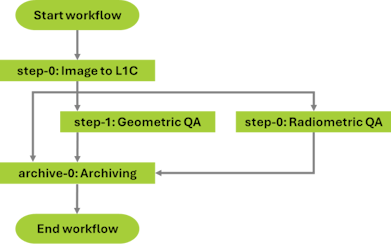
This example shows a Workflow with a generic Level 1C processor, followed by some QA and archiving steps processed in parallel. The results of the QA steps are then also Archived.
Below are the workflow features steps.
- Three processing steps
- Level 1C processing
- Geometric QA
- Radiometric QA
- An archiving step
- The
pathsobject at the bottom links the steps to each other- After processing the Level 1C in
step-0, the output is processed in parallel bystep-1andstep-2, and archived inarchive-0 - The output from
step-1andstep-2are Archived separately
- After processing the Level 1C in
{
    "id": "farearth.workflow-generic-image-to-ortho-geo-and-radio",
    "displayName": "SmallSat Workflow",
    "shareable": true,
    "steps": [
        {
            "id": "step-0",
            "displayName": "Image-to-L1C",
            "executorId": "farearth.smallsat-ortho",
            "parameters": {
                "dataHostId": "farearth.azure-host-0",
                "publishDiagnostics": true,
                "ortho": {
                    "weithingMethod": "DENOMINATOR"
                }
            }
        },
        {
            "id": "step-1",
            "displayName": "Geometric-QA",
            "executorId": "farearth.qa-geometric",
            "parameters": {
                "publishDiagnostics": true,
                "dataHostId": "farearth.azure-host-0"
            }
        },
        {
            "id": "step-2",
            "displayName": "Radiometric-QA",
            "executorId": "farearth.qa-radiometric",
            "parameters": {
                "publishDiagnostics": true,
                "dataHostId": "farearth.azure-host-0"
            }
        },
        {
            "id": "archive-0",
            "displayName": "Archiving",
            "executorId": "farearth.azure-archive-0",
            "multi": true
        }
    ],
    "paths": {
        "step-0": ["step-1", "step-2", "archive-0"],
        "step-1": ["archive-0"],
        "step-2": ["archive-0"]
    }
}
Example 2: generic image orthorectification, with geometric validation only
Below are the workflow features steps.
- Two processing steps
- Level 1C processing
- Geometric QA
- An archiving step
- The
pathsobject at the bottom links the steps to each other- After processing the Level 1C in
step-0, the output is processed instep-1and archived inarchive-0(in parallel) - The output from
step-1is archived separately
- After processing the Level 1C in
{
    "id": "farearth.workflow-generic-image-to-ortho-geo-only",
    "displayName": "SmallSat Workflow Geo Only",
    "shareable": true,
    "steps": [
        {
            "id": "step-0",
            "displayName": "Image-to-L1C",
            "executorId": "farearth.smallsat-ortho",
            "parameters": {
                "dataHostId": "farearth.local-s3-host-0",
                "publishDiagnostics": true,
                "ortho": {
                    "weightingMethod": "DENOMINATOR"
                }
            }
        },
        {
            "id": "step-1",
            "displayName": "Geometric-QA",
            "executorId": "farearth.qa-geometric",
            "parameters": {
                "publishDiagnostics": true,
                "dataHostId": "farearth.local-s3-host-0"
            }
        },
        {
            "id": "archive-0",
            "displayName": "Archiving",
            "executorId": "farearth.local-s3-archive-0",
            "multi": true
        }
	],
    "paths": {
        "step-0": ["step-1", "archive-0"],
        "step-1": ["archive-0"]
    }
}
Example 3: enterprise processing
This example requires specific processing components. The Level 0 processing step ingests raw data. It has a specific processing component to prepare it for further processing.
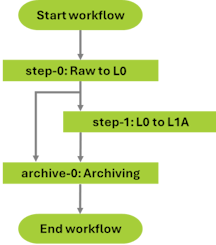
Below are the Workflow features steps.
- Two processing steps
- Level 0 processing (note the unique 'trubit-1' processor)
- Level 1A processing
- An archiving step
- The
pathsobject at the bottom links the steps to each other- The data is processed in
step-0. The results are processed instep-1and archived inarchive-0(in parallel) - The output from
step-1is archived separately
- The data is processed in
{
    "id": "farearth.trueorbit",
    "displayName": "Trueorbit Raw-L1A workflow",
    "description": "A Trueorbit Raw-L1A workflow",
    "shareable": true,
    "steps": [
        {
            "id": "step-0",
            "executorId": "farearth.trubit-1-raw-to-l0",
            "displayName": "RAW-to-L0",
            "parameters": {
                "publishDiagnostics": false,
                "dataHostId": "farearth.azure-host-0",
                "subsetting": {
                    "overlap": 256,
                    "rows": 16384
                }
            }
        },
        {
            "id": "step-1",
            "executorId": "farearth.generic-l0-to-l1a",
            "displayName": "L0-to-L1A",
            "multi": true,
            "parameters": {
                "dataHostId": "farearth.azure-host-0",
                "radiometrics": {
                    "method": "NONE",
                    "rpfCorrection": "NONE"
                }
            },
            "inputs": {
                "0": [
                    {
                        "productType": "L0"
                    }
                ]
            }
        },
        {
            "id": "archive-0",
            "executorId": "farearth.azure-archive-0",
            "displayName": "Archiving",
            "multi": true
        }
    ],
    "paths": {
        "step-0": ["step-1", "archive-0"],
        "step-1": [ "archive-0"]
    }
}
Example 4: archive only
This simple Workflow archives the input data without any processing. There is only one archive-0 step.
{
    "id": "farearth.archive",
    "displayName": "Archive workflow",
    "steps": [
        {
            "id": "archive-0",
            "executorId": "farearth.azure-archive-0"
        }
    ]
}
Workflow details
The table below lists the various fields in a Workflow configuration.
| Field | Examples | Details |
|---|---|---|
id | farearth.workflow-generic-image-to-ortho-geo-and-radio farearth.trueorbit farearth.archive | Unique identifier of the Workflow. The ID starts with the subscription ID (example, farearth). This ID is used to provide access to the workflow for specific users and subscriptions. It tracks any activity related to the workflow. |
shareable | true false (default) | Controls if the workflow may be shared with other subscriptions. NOTE: setting this to true does not yet share the workflow. |
steps | step-1, archive-0 | This contains the processing steps for the workflow. Each step has more parameters. See step parameters. |
paths | "step-0": ["step-1", "archive-0"], etc. | The sequence the Workflow steps are to be execute. The key selects the input step. The output will be processed in parallel by the steps listed as the value of this parameter. EXAMPLE: on the left, the output of step-0 will be processed by both step-1 and the archive-0 steps. |
If the shareable flag is set to true, the Workflow can be shared by the Admin user from the SUBSCRIPTIONS page.
Step parameters
| Field | Example | Details |
|---|---|---|
executorId | farearth.generic-l0-to-l1a | The ID of the executor that will be used in this processing step |
multi | false | Allows for parallel job processing in the step if true. If false, each job in the step will process sequentially. See NOTE below |
optional | false | Default: false If true, this step can fail without the order as a whole failing |
continueOnFail | false | Default: false If true, subsequent steps in the workflow of any job that failed will continue to process (it requires optional to be set to true). See continue on fail |
parameters | Contains the custom parameters specific to this processing step. See parameters | |
dataHostId | The data host ID where the results of the step will be stored temporarily. It must be accessible by subsequent steps |
A processing step can produce multiple outputs while it is processing. To allow for performance optimisation, the individual output products can be processed by subsequent steps in parallel. If the subsequent step has the multi flag set to true, it means that it will wait for the previous processing steps to finish before processing furher.
Parameters
Within the parameters, an optional attachProperties tag can be specified. All key-value pairs within attachProperties will be added to the products generated by the processing step.
For more information, see processor-specific documentation.
Continue on fail
|
|
|
|
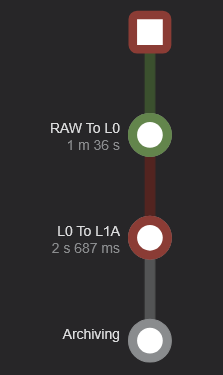
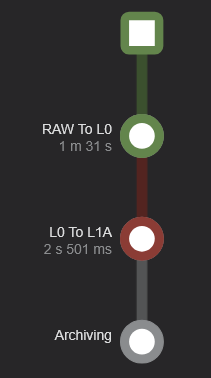
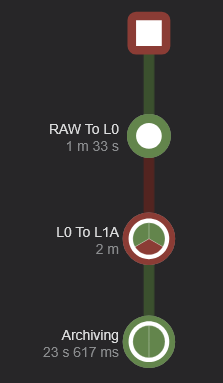
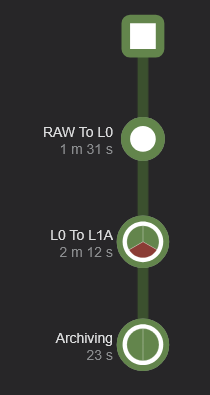
When a step in the workflow is configured to be optional, an order will not fail if a job for that specific step fails. Further jobs for that step will only be scheduled if the continueOnFail parameter is set to true.
Additional auxiliary files for archived products
By default, the archiving step will create STAC JSON files. Additional files can be added to each archived product.
For more information, see: auxiliary file generation.