Add new Workflows
To create a new Workflow or edit an existing Workflow, follow the steps below.
Step 1
- Go to FarEarth (https://gateway.farearth.space/)
- Log in with your e-mail and password
Step 2
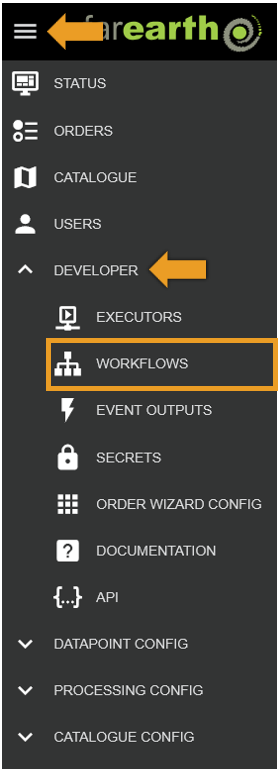
- Click MENU
- Click DEVELOPER
- Click WORKFLOWS
Step 3
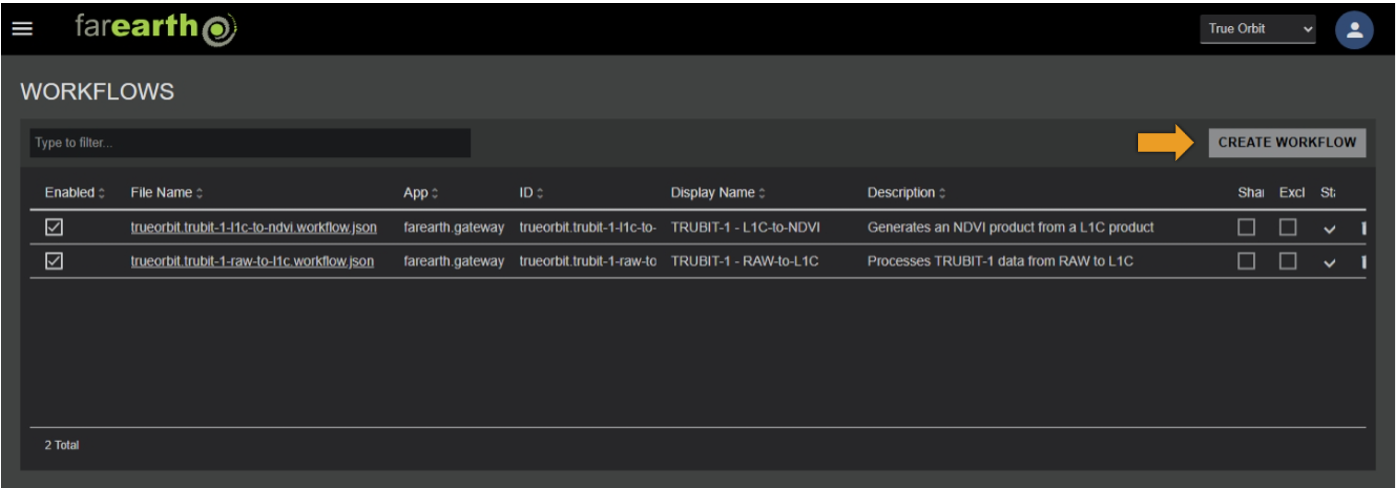
- Click CREATE WORKFLOW
Step 4
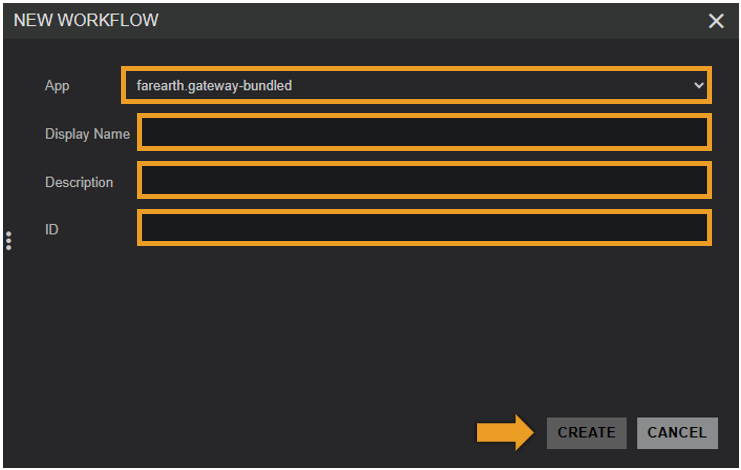
- In NEW WORKFLOW, enter the required fields
- Click CREATE
| Field | Details |
|---|---|
| App | The FarEarth application ID where the Workflow will be created |
| Display Name | The actual name of the Workflow displayed within the application |
| Description | A short description of the Workflow |
| ID | A unique ID for the Workflow |
Step 5
- The new Workflow will appear in the list
- FarEarth automatically adds additional fields to the Workflow
| Field | Details |
|---|---|
| Enabled | Controls whether the Workflow is enabled or not |
| File Name | The JSON filename of the Workflow as stored on disk |
| Shareable | Controls whether the Workflow may be shared with other subscriptions |
| Exclusive | Limits the Workflow to be shareable with only one subscription |
Step 6
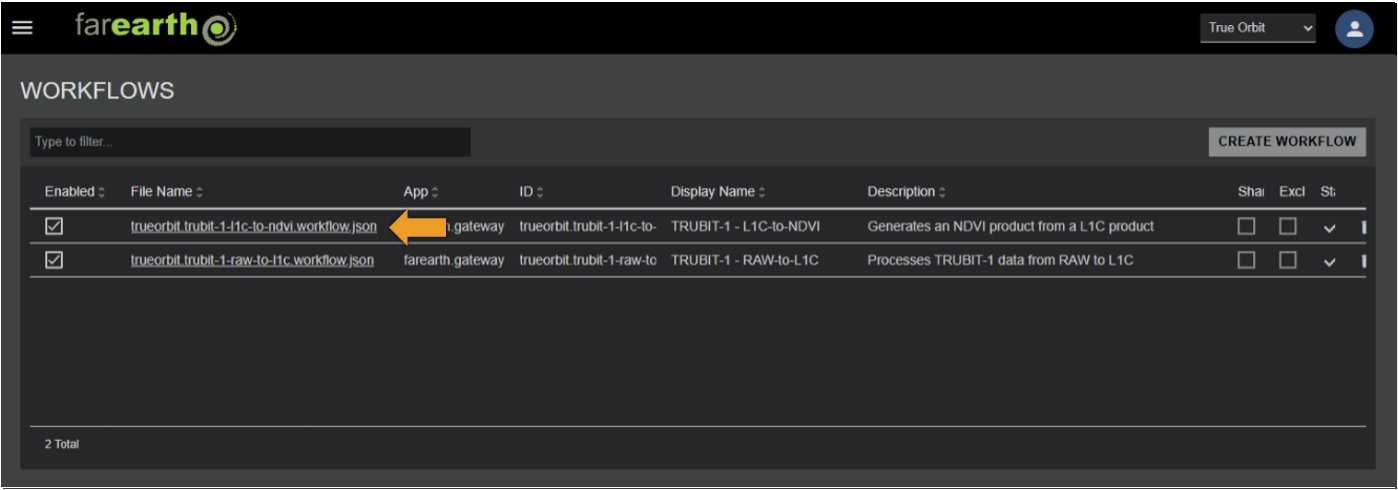
- The Workflow is pre-populated with a template that requires further editing
- To edit the Workflow configuration, click on the filename in the collection list
- See configure Workflow
Expected outcome
- You can edit or add your own workflows to FarEarth