Manually start an order from a Pickup
Follow these steps to start an order with data in your Pickup directory from the FarEarth Pickup page.
Prerequisites
- You need to have access to a FarEarth subscription with permission to view the Datapoint Config
- Satellite imagery products must be available in your Pickup directory
Step 1
- Go to FarEarth (https://gateway.farearth.space/)
- Log in with your e-mail and password
Step 2
- Click MENU
- Click DATAPOINT CONFIG
- Click PICKUPS
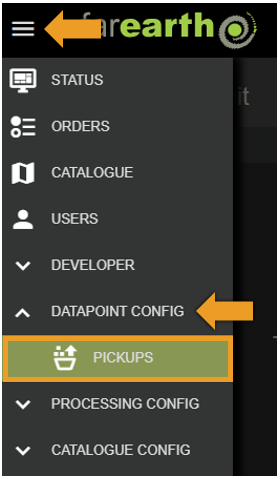
Step 3
- You will see a list of Pickups
- Ensure the status has a checkmark to indicate that it is online
- Click FOLDER icon to open the file browser
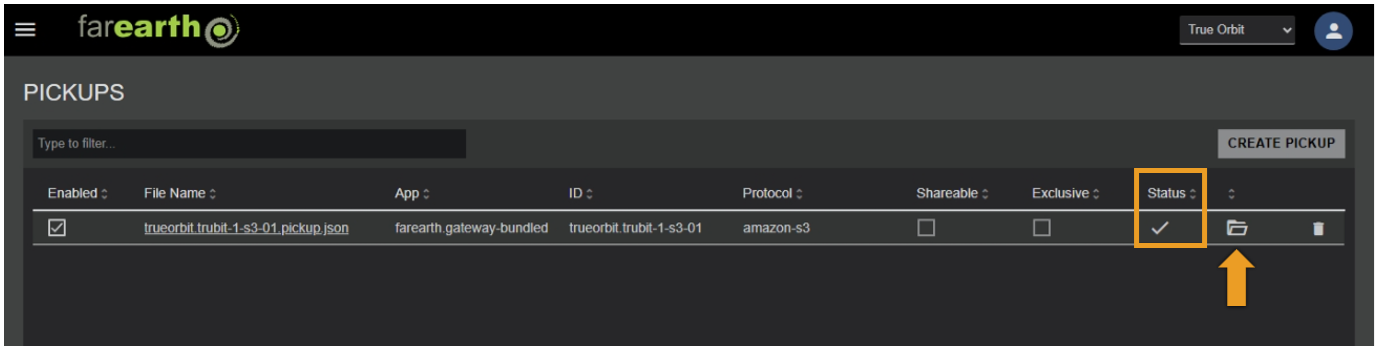
Step 4
- You will see the BROWSE page
- Navigate to the folder or file you want to process
- Click PLUS icon
note
In the file browser, folders are indicated in green and files in white. Click on a folder name to view the content.
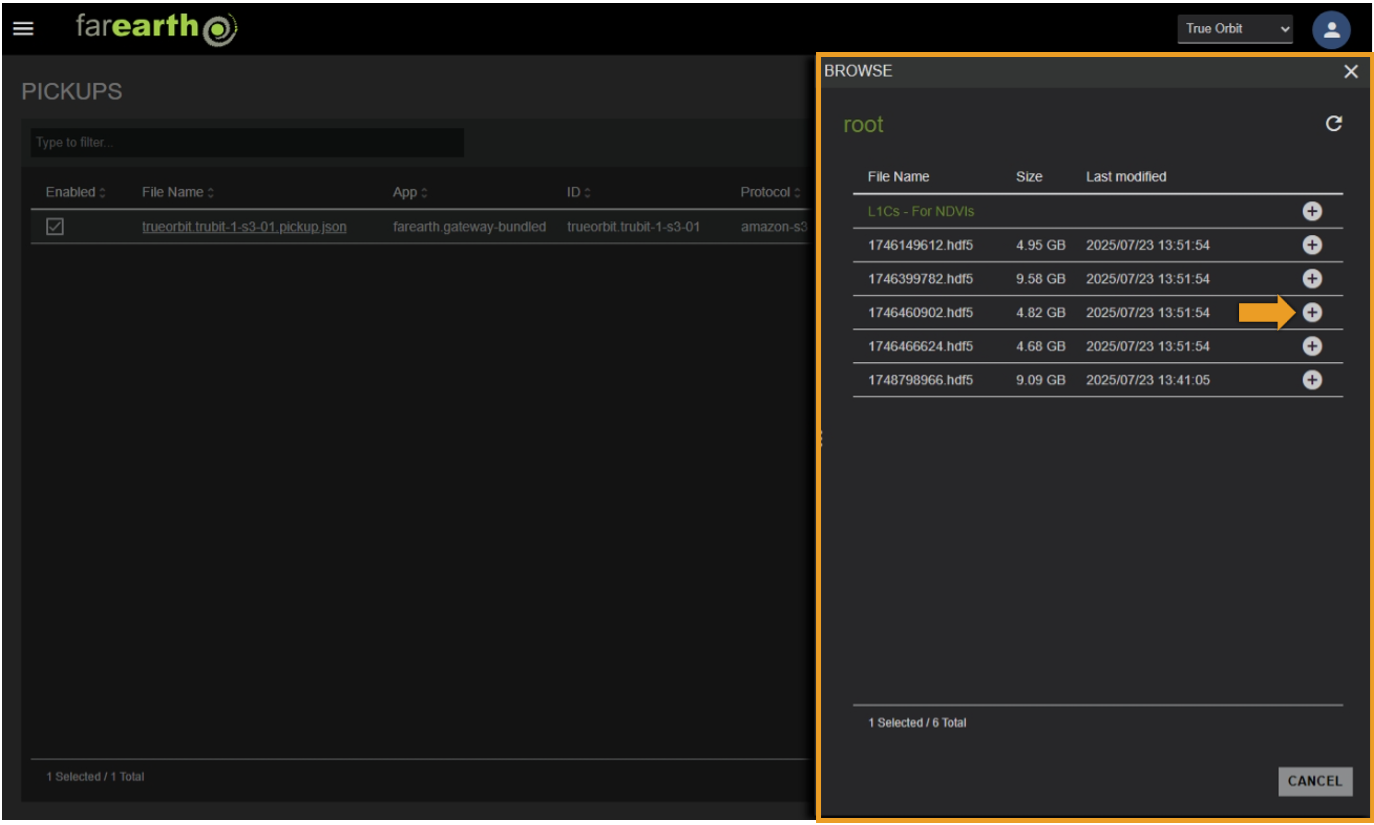
Step 5
- You will see different windows if you have selected a file or a folder
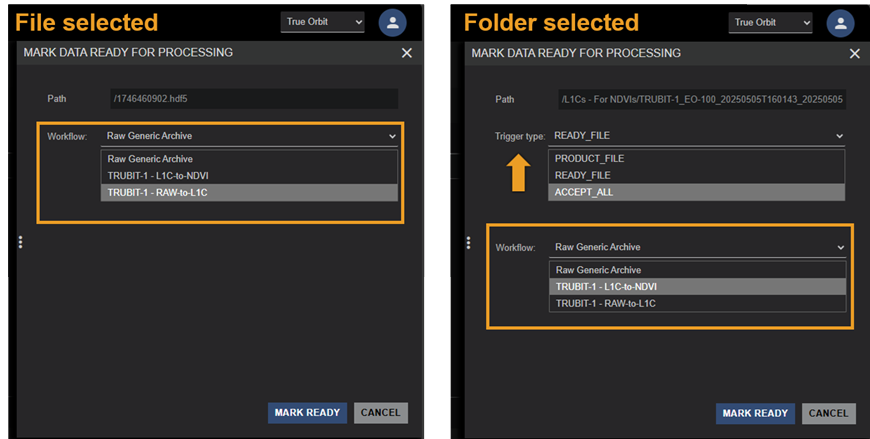
- If you selected a file follow these steps
- Click on the WORKFLOW dropdown menu
- Select a Workflow
- Click MARK READY
- If you selected a folder follow these steps
- Click on the TRIGGER TYPE dropdown menu
- Select a Trigger type
PRODUCT_FILEif you have a FarEarth product file in the product folderREADY_FILEif you have a.readyfile with the same name as the folderACCEPT_ALLif you want to process all data within the selected folder
- Click on the WORKFLOW dropdown menu
- Select a Workflow
- Click MARK READY
Step 6
- You will get a notification with the Order ID
- Repeat these steps to start more orders from a Pickup
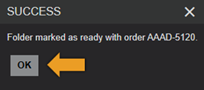
Expected outcome
- You will be able to manually start orders from a Pickup and assign a Workflow to process the data