Upload calibration data
Follow these steps to upload calibration data to FarEarth.
Prerequisites
- You need to have access to a FarEarth subscription with permission to upload data
note
If you do not have access to FarEarth, contact your organisation's Administrator.
caution
To switch between your organisation's subscriptions, click on the dropdown menu.
Ensure you select the account associated with the data you want to view.

Step 1
- Go to FarEarth (https://gateway.farearth.space/)
- Log in with your e-mail and password
Step 2
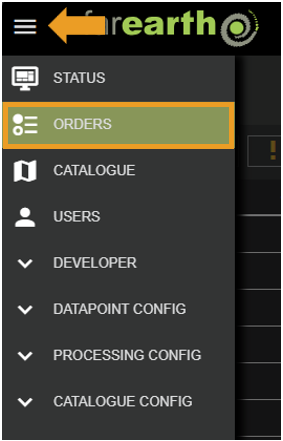
- Click MENU
- Click ORDERS
Step 4
- Click CREATE ORDER

Step 5
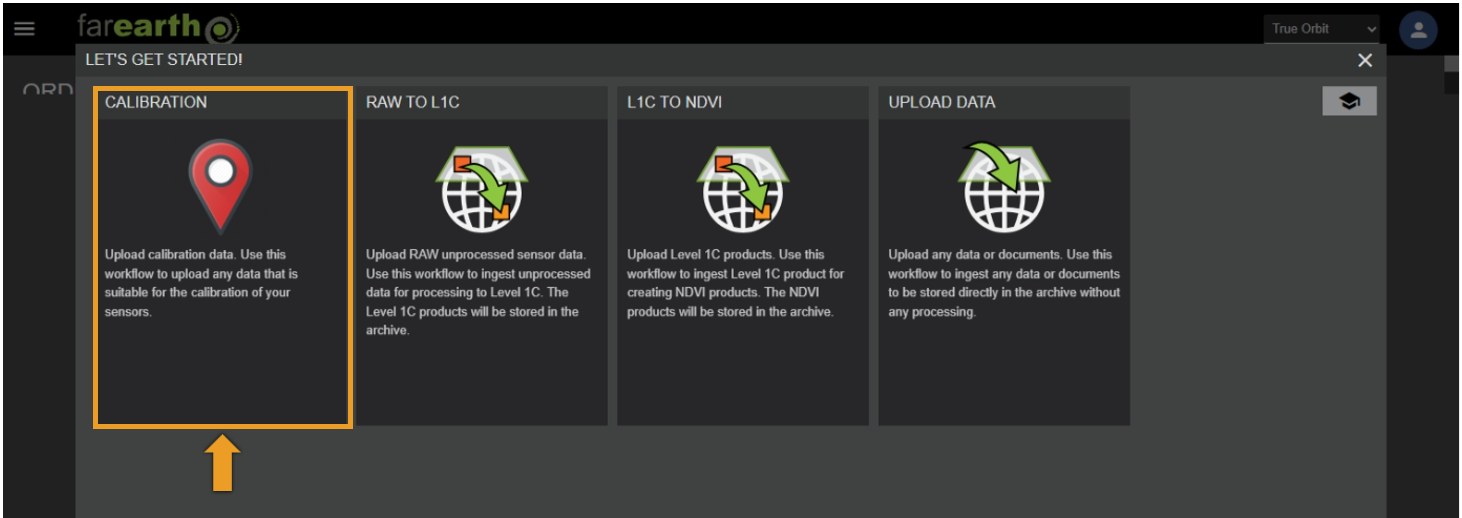
- Select the CALIBRATION option
Step 6
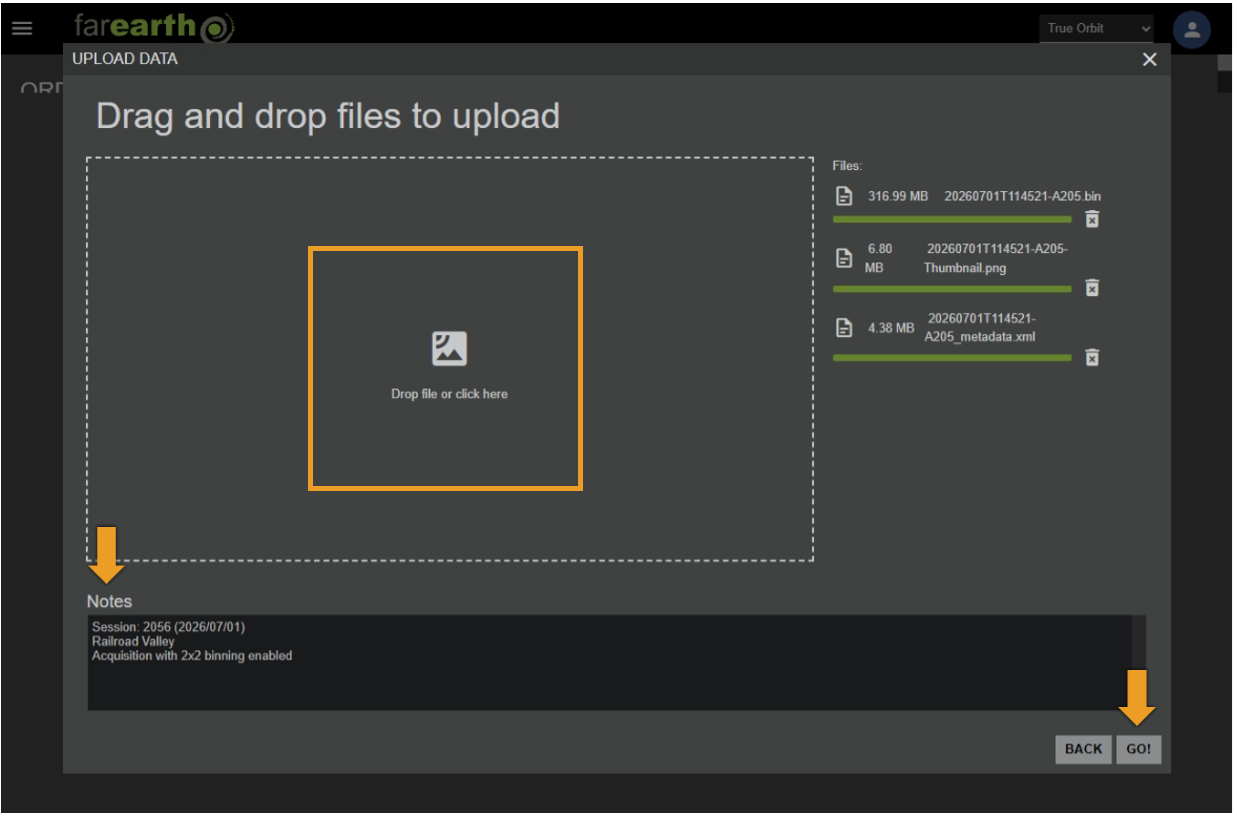
- Drag and drop your calibration data into the DROP FILE OR CLICK HERE box
- Wait for the files to upload
- Add a note describing the content of the uploaded files
- Click GO!
Step 7
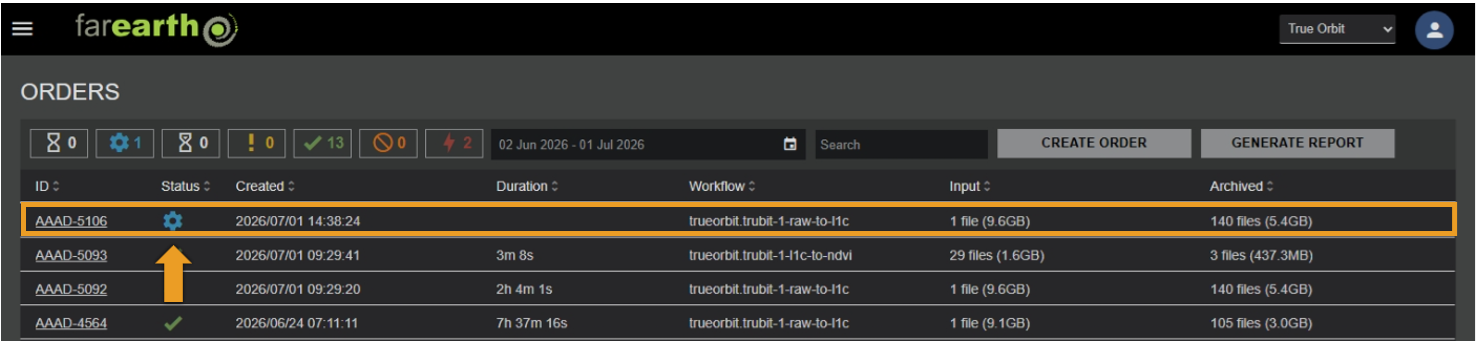
- FarEarth will switch to the Orders page
- A new Order will be created at the top of the list
- Repeat these steps to upload more calibration data
Expected outcome
- Your data will be processed for calibration