View processing Reports
Follow these steps to view and download processing Reports for your orders.
Prerequisites
- You need to have access to a FarEarth subscription with the Operator permission
note
If you do not have access to FarEarth, contact your organisation's Administrator.
caution
To switch between your organisation's subscriptions, click on the dropdown menu.
Ensure you select the account associated with the data you want to view.

Step 1
- Go to FarEarth (https://gateway.farearth.space/)
- Log in with your e-mail and password
Step 2
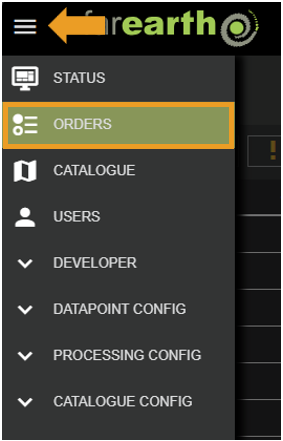
- Click MENU
- Click ORDERS
Step 3
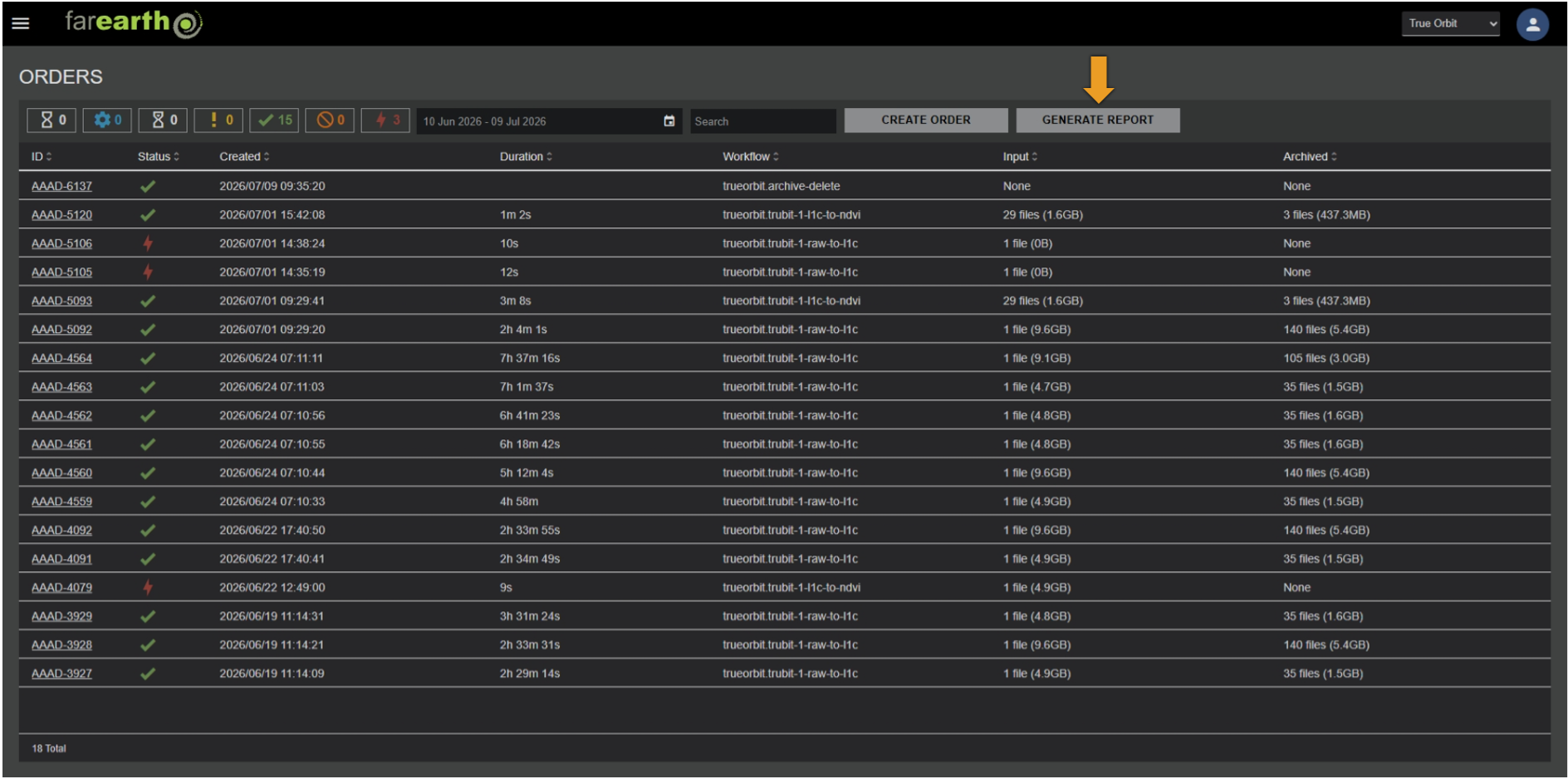
- Click GENERATE REPORT
Step 4
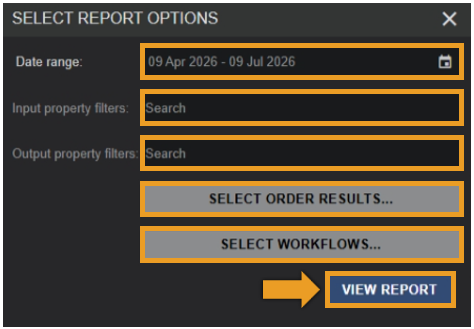
- Click DATE RANGE to limit the Report to a specified period
- You can also add filters to limit the Report to specific input or output products
- Click on SELECT ORDER RESULTS to limit the results to successful, failed or cancelled orders
- Click SELECT WORKFLOWS to limit the results to specific Workflows
- Click VIEW REPORT
note
Example filter to limit the Report to Level 1C products:
productType=L1C
Step 5
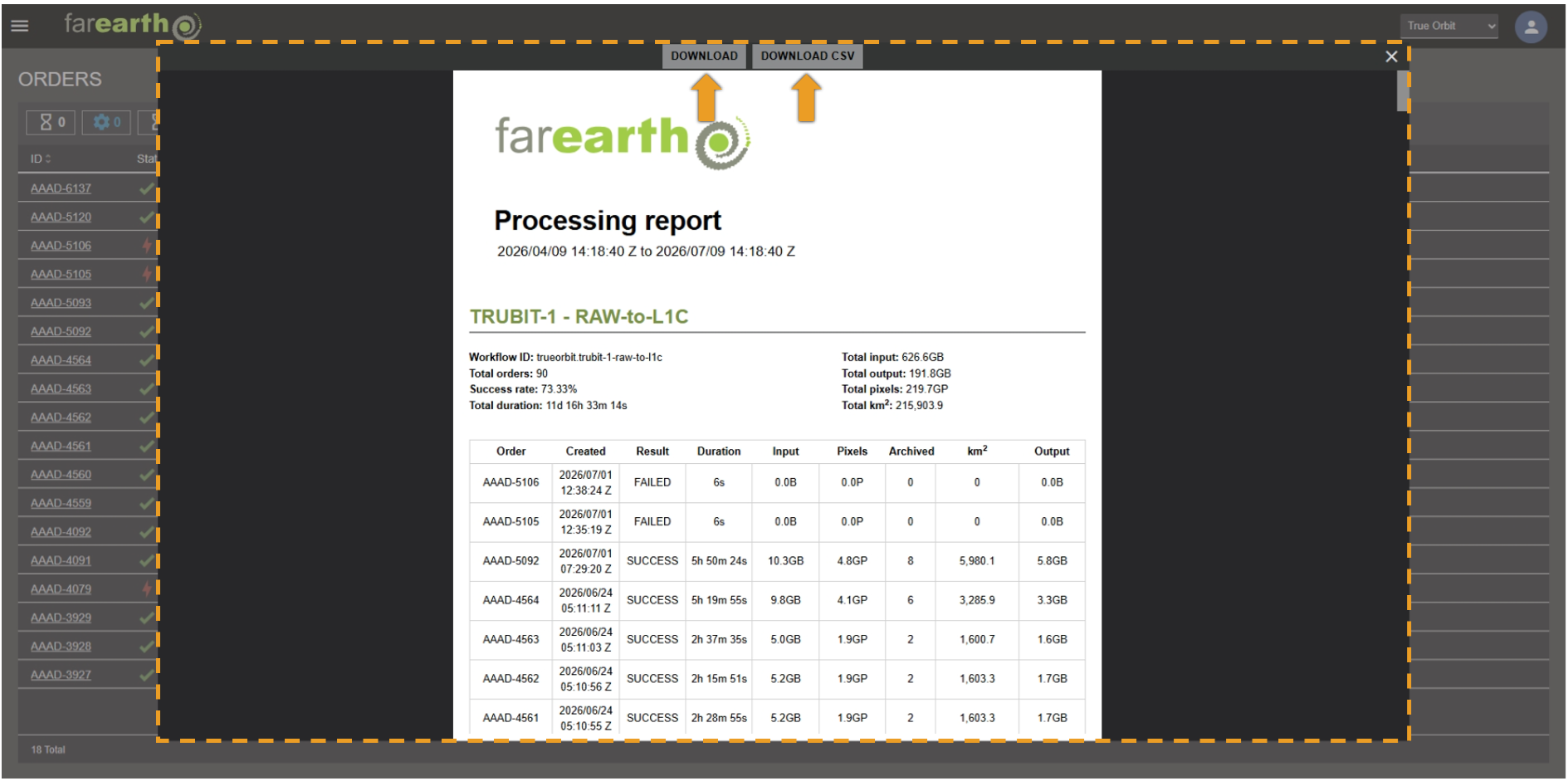
- The processing Report will open in a full-screen view
- Click DOWNLOAD to download the Report as a PDF file
- Click DOWNLOAD CSV to download a CSV file containing all the data in the Report
Expected outcome
- You should be able to view and download processing Reports for your orders