FarEarth menus and organisations
You can navigate FarEarth using the menu on the left, and switch between organisations using the dropdown menu at the top.
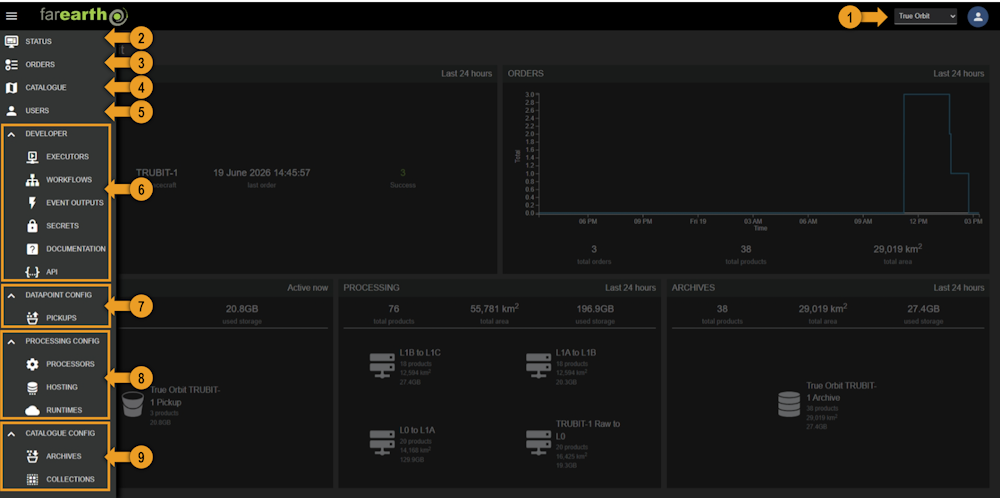
To open the menu on the left, click the hamburger menu icon (three lines) at the top-left of the page.
1. Switch organisation
Choose between your personal account or one of the organisations that you belong to using this dropdown menu.
2. Status menu
Navigate to the FarEarth processing status page, where you can get an overview of the status of all FarEarth components.
3. Orders menu
Navigate to the FarEarth Orders page, where you can get details of all processing orders in FarEarth.
4. Catalogue menu
Navigate to the Catalogue where you can find, view and download all products stored in your FarEarth Archive. You can also view product metadata and Quality Reports here.
5. Users menu
Navigate to the Users page where you can manage all users that have access to your subscription. You can also invite new users to join your subscription here.
Requires Admin permission on your User account.
6. Developer menu items
Navigate to developer pages.
| Page | |
|---|---|
| Executors | Manage all Executors (processing resources) |
| Workflows | Manage all Workflows (processing recipes) |
| Event outputs | Manage all Event notification configurations |
| Secrets | Manage all Secrets (securely stored passwords) |
| API | View the API documentation and interactively test the endpoints |
7. Datapoint config menu items
Navigate to the Pickups configuration, where data storage used to ingest data for processing is configured.
8. Processing config menu items
Navigate to processing pages.
| Page | |
|---|---|
| Processors | Manage all FarEarth Processor configurations |
| Hosting | Manage all Hosting configurations, where data is temporarily stored between processing steps |
| Runtimes | Manage all Runtime configuration, which determines where processing nodes are dynamically deployed during an order |
9. Catalogue config menu items
Navigate to Catalogue pages.
| Page | |
|---|---|
| Archives | Manage all Archives, where output products are stored |
| Collections | Manage all Collections which make it easier to group products in the Catalogue together |